Break Settings
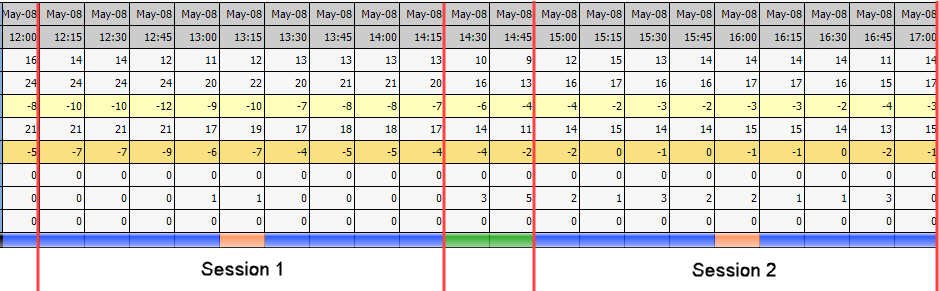
The Break Settings table allows the user to define the earliest and the latest break times allowed based on the shift’s session lengths. How sessions work depend on whether a shift has a lunch, or not. This document shows examples of both types of shifts: with-lunch and without-lunch. The advantage of having these break adjustments based on sessions is that you don’t have to define break behavior for every shift you create, but rather just for a small number of session lengths.
What do you want to do?
Tasks in this Topic Include:
Related Tasks:
- Create Sites
- Setting Up Hours of Operation
- Create Skills
- Applying Service Levels
- Creating Skill Teams
- Applying Non-Call Parameters
- Setting Up Exception Codes
- Import Work History
Break Settings Fields
The Break Settings table allows the user to define the earliest and the latest break times allowed based on the shift’s session lengths. How sessions work depends on whether a shift has a lunch or not. The advantage of having these break adjustments based on sessions is that you do not have to define break behavior for every shift you create, but rather just for a small number of session lengths. Where in the shift Monet will place the break is based on the amount of time from the start of the shift to the start of the lunch, and from the end of the lunch to the end of the shift.
These are the available parameters used to configure Break Settings in a Work Group.
|
Break Settings Fields |
Description |
|---|---|
| Session Length | The amount of time from the start of the shift to the start of the lunch; and the end of the lunch to the end of the shift. |
| Earliest Break Start | The earliest and latest time Monet will schedule a break in the first session window. |
| Latest Break Start | The earliest and latest time Monet will schedule a break in the second session window. |
| Save | Saves the changes. |
Set Break Settings
To set where breaks are placed in a shift:
- Select Setup in the left-navigation menu.
- Select Break Settings.
- Select the workgroup to apply the settings to from the Workgroup drop-down menu on the top navigation bar.
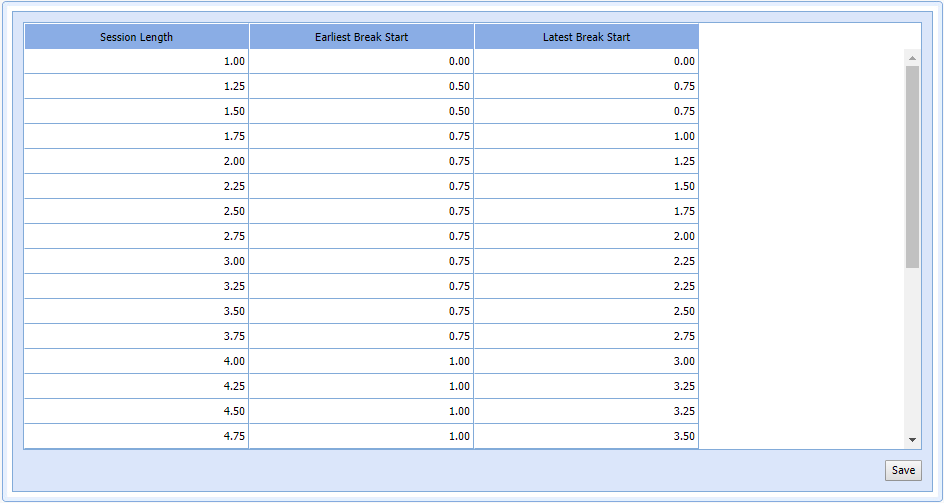
- Enter the earliest start for the break for a session in the Earliest Break Start for each Session Length value.
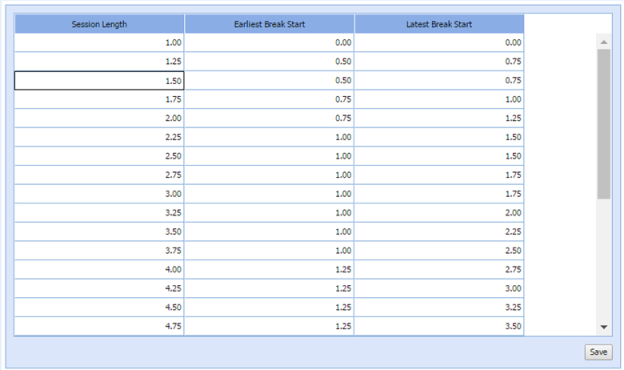
For example: In the table above for a session length of 4.00 (an 8-hour shift), the break will be placed no earlier than 1.25 hours from the start of the session, and no later than 2.75 hours from the start of the session.
- Enter the latest start for the break for a session in the Latest Break Start for each Session Length entry.
- Select Save.